Microsoft Office programs such as Word, Excel & Powerpoint will (by default) open in the size of screen that you last used.
The quickest way therefore is to open the program of choice such as Word. Set to the window size that you prefer and close the program. The next time it opens it will launch to that size.
Force Launch Office In Specific Window Size
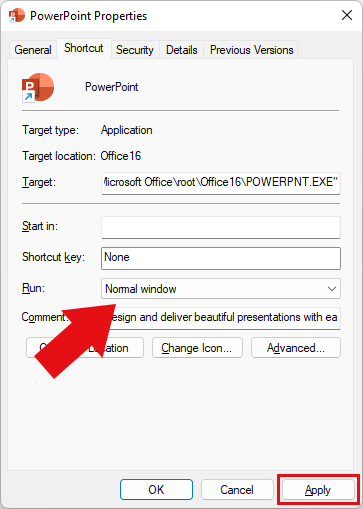
If you would like Office to always open either maximized or normal window size, this can be set from the shortcut properties.
In this example we’ll use PowerPoint. Firstly – close PowerPoint.
Force Launch Office In Specific Window Size
- Right-click a shortcut for PowerPoint and select “Open File Location”.
- In the Window that opens, again right-click on the (already highlighted) shortcut for PowerPoint. Click Properties.
- In Properties, from the Shortcut tab, select: Normal Window | Minimized | Maximized. Click Apply.