Here is an issue that we have encountered a few times on HP laptops running Windows 10 Pro…
The Problem
When connecting USB devices such as USB memory drives or inserting SD memory cards, you are met with the following message:
You don’t currently have permission to access this folder. Click continue to permanently get access to this folder.
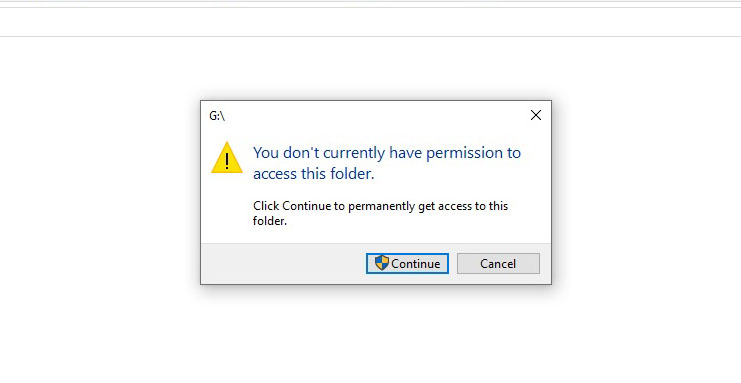
If you click Continue, the access still isn’t granted.
Possible Issues
If you, or your system administrator have made changes to the system registry or altered the system Group Policy settings to prevent using USB devices on the system, this will have to be undone.
However, if you have not made these changes, there must be a piece of software handling this. It may be your internet security software or built-in manufacturer OEM software.
HP Computers Running Windows 10 Pro
We have seen this issue on HP computers running a piece of software called HP Client Security. This software often comes preinstalled on HP computers running Windows 10 Professional.
It’s actually a good program with some really useful features for computers running within a business, including locking users out from inserting external drives. This can protect from data theft and also can protect from malware being passed to the system via the external drive.
The Solution
The following solution can fix this issue on HP computers.
How To Allow Permissions For USB Drives (On HP Computers)
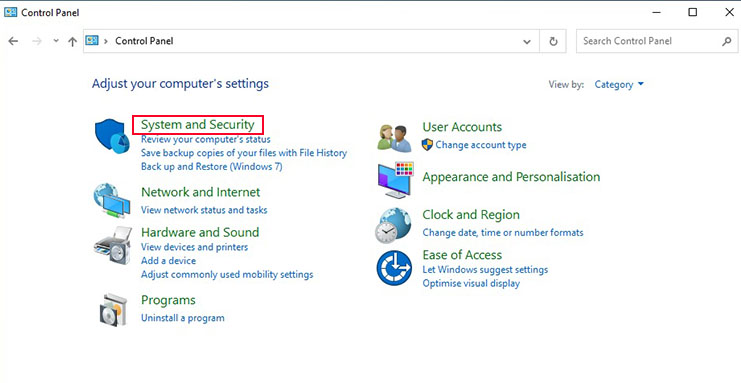
- Go to Control Panel / System & Security
Type the word control into the Search Bar on the bottom of your screen and launch Control Panel. Click into System & Security.
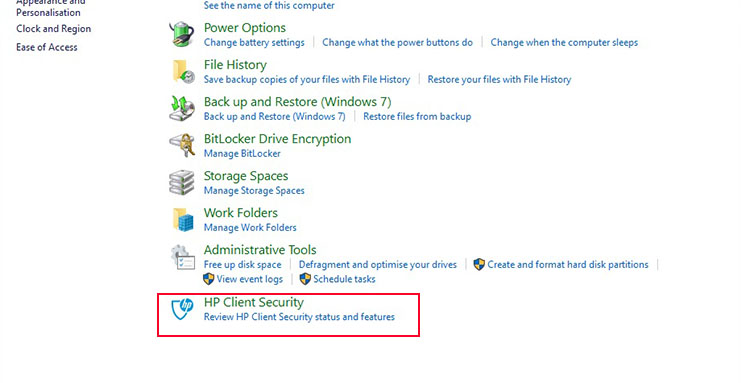
- Launch HP Client Security
From within Control Panel / System & Security. Locate & launch the HP Client Software. (On launch, you may be asked to enter your Windows login password to proceed).
- Device
From within the HP Client Security app, go to Device Permissions

- Click Change
To edit the settings click Change & Yes when the user account control confirmation pops up asking “Do You Want To Allow Changes…”

- Allow Full Access
Change from JITA Required (Just In Time Authentication) over to Allow – Full Access. The changes will be saved when you exit the program but will not take effect until you have rebooted the computer.

After Reboot
Attempt to connect an external hard drive or USB stick and you should discover that the device now allows you to access it.
If this helps solve your issue, consider subscribing to our the Computroon channel on YouTube, which makes writing these articles worthwhile. Here’s the link.
Changing AutoPlay Options
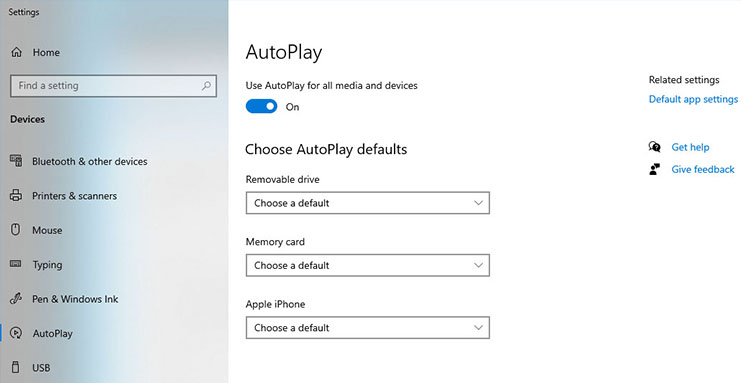
If you want to alter what Windows does when you insert a device, type the word autoplay into the search bar and open the settings for AutoPlay.

Proceed to select what you would like Windows to do when an external drive is inserted. For external devices, we recommend using the option “Open Folder To View Files (File Explorer)”.