
Tutorial Level – Easy
Here are the simple steps to make your Windows 8.1 Start Screen background the same as your main Desktop wallpaper.
First be sure you have an image that you are happy with to use as your Desktop Background.
Here’s How To Set The Initial Desktop Backround
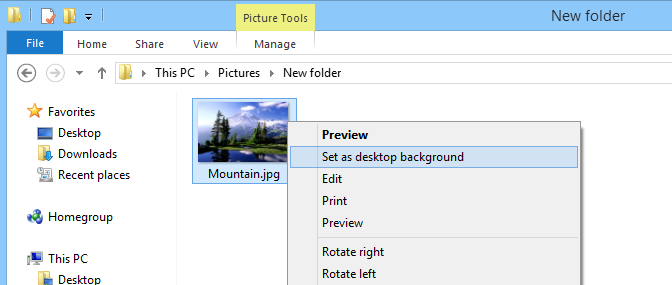
Browse your photo folders, once you find a picture that you want to use, Right Click on it and choose “Set As Desktop Background”
Once you’ve done that, follow these steps to use the same image as your Start Screen Background.
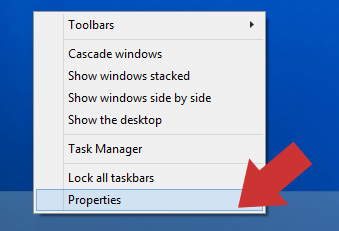
Right Click the Taskbar at the bottom of the Desktop screen and take Properties.
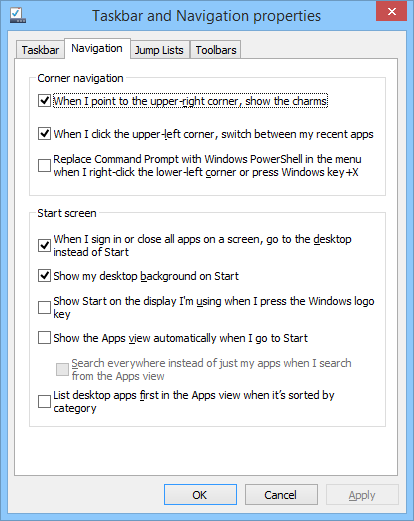
In the “Taskbar & Navigation” Properties box select Navigation and tick “Show My Desktop Background On Start”. Hit Apply and you’re all done.
The benefit of doing this makes the transition between the two modes (Start & Desktop) smoother and easier to use if you are not a big fan of the Windows 8 Start tiles.