
Support Tutorial
Detach Your Email Login From Windows 8.1
Windows 8.1 will at some point ask you to add a “Microsoft Account” to your user account if you haven’t already done so. 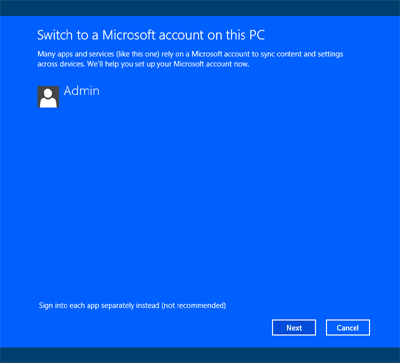
There are many benefits from doing so but some users prefer to switch on their computers without a password and not be automatically logged into their email.
Attaching a Microsoft Account involves adding your email address and password to the computer which means features such as the Mail App and Calendar will automatically sync with your email server. You will also be required to sign in with your email password every time you switch on your computer.
One alternative is to use a Local Account. This will boot up without asking for a password and if you wish to view your email you can do so by logging in through a web browser.
Another option is to click “Sign into each app separately instead“. This will attach only certain apps to your email address. Handy for things like Store App on a local account machine.
Here is how to detach your email address from the computer and switch to a local account.
1: Pull up the charms (Keyboard: Windows Flag + C) Access “Change PC Settings” and click on “Accounts”.
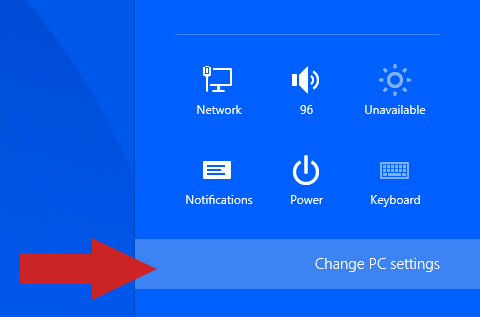
Access By Swiping The Charms – Settings / Change PC Settings

Click Accounts / Disconnect
2. Click “Disconnect”.
You will be asked to enter your password to verify you want to switch to a Local Account. Windows 8.1 will then ask you to confirm a Username for the local account. There will be password fields to enter but just leave these password fields blank if you do not want to enter a password every time you switch on your computer.
The system will continue to sign out and you can now access the machine as a local account.
If you decide you preferred a Microsoft Account on your computer simply click the Mail App tile and it’ll sign up and switch back.